If you MantisIf you use X with multiple pistols or rifles, you should register each weapon in the app's arsenal. This will allow you to filter your training results by the weapon used and compare them more effectively later.
This guide will show you step by step how to... MantisIn the X App, you create a new weapon and then select it for your training.
Why should I store my weapons in MantisHow to capture the X-Arsenal?
Choosing the right weapon improves your overview of your training sessions. You can then filter the results by the weapon used and, for example, see if your stats change with different pistols or rifles.
In newer versions of the MantisThe X App also allows you to restore the settings last used with a weapon. This is especially useful if you regularly switch between different weapons or MantisYou change X-mounting positions.
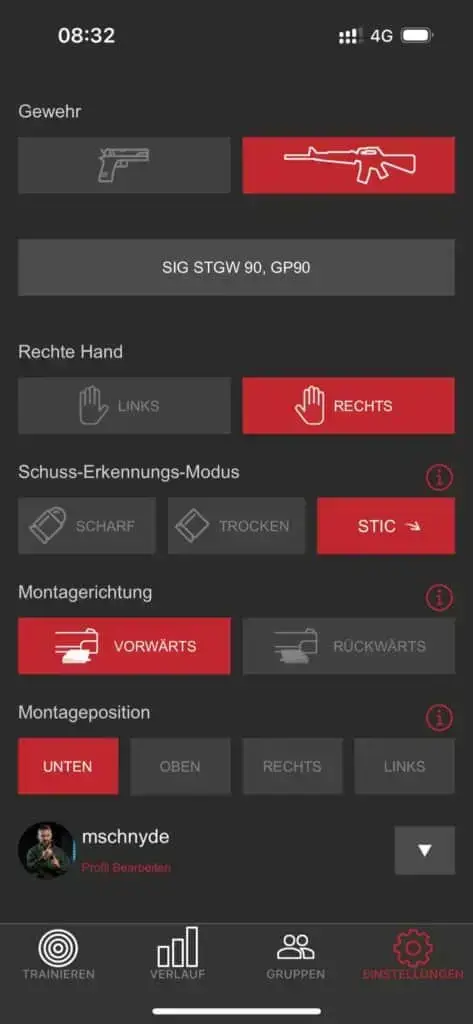
However, the choice of weapon does not automatically change the mechanical properties of the MantisX-Sensors. The correct settings remain crucial for:
- Waffenart
- Right or left handed
- Shot detection mode
- Mounting direction
- mounting position
New weapon in the MantisCreate an X app
First, open the MantisX App and make sure you are in the area Settings You are located. Depending on the app version, individual menu items may be labelled or displayed slightly differently.
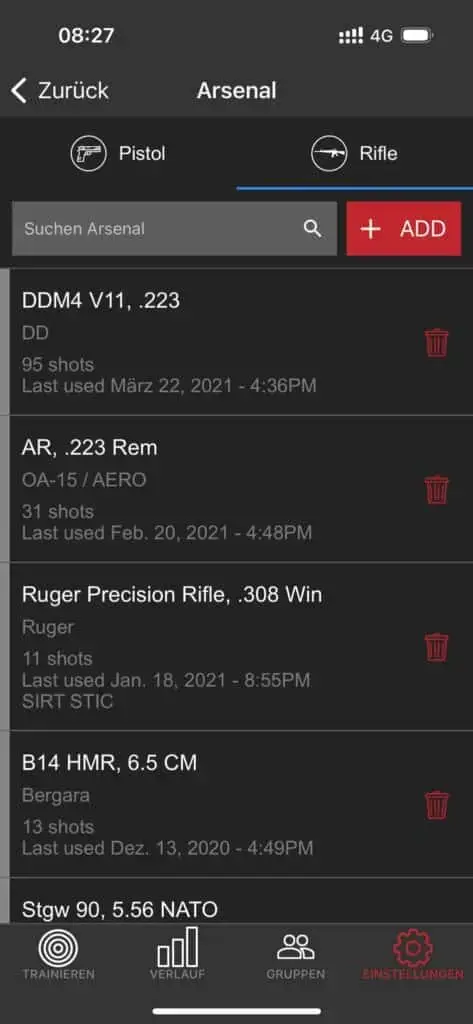
1. Open Arsenal
Tap in the bottom right corner. Settings and then open the Arsenal respectively Manage Arsenal.
All saved pistols and rifles are displayed here. Switch between them at the top. pistol and gun, so that the weapon is assigned to the correct category.
Then tap + ADD, to add a new weapon.
2. Hersteller auswählen
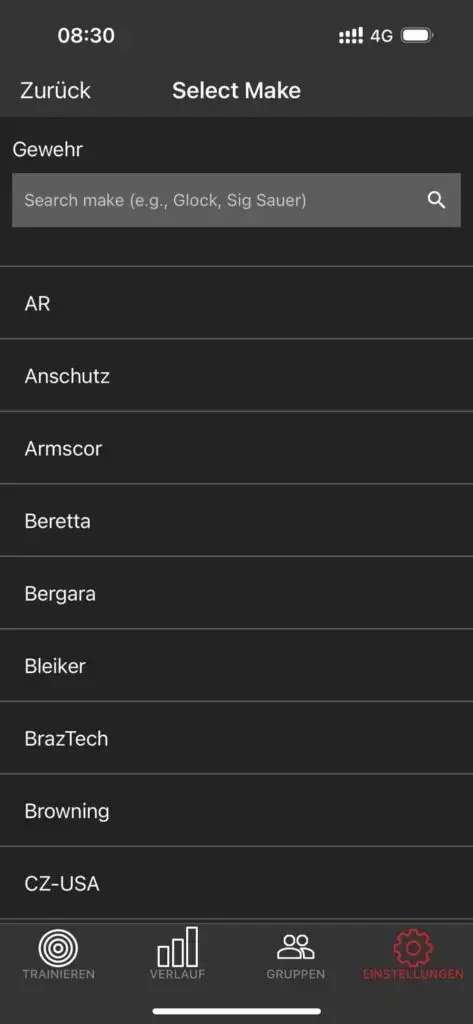
Find the manufacturer of your weapon. For a Swiss assault rifle, for example, you can... SIG .
Select the appropriate manufacturer from the displayed list.
3. Determine the model
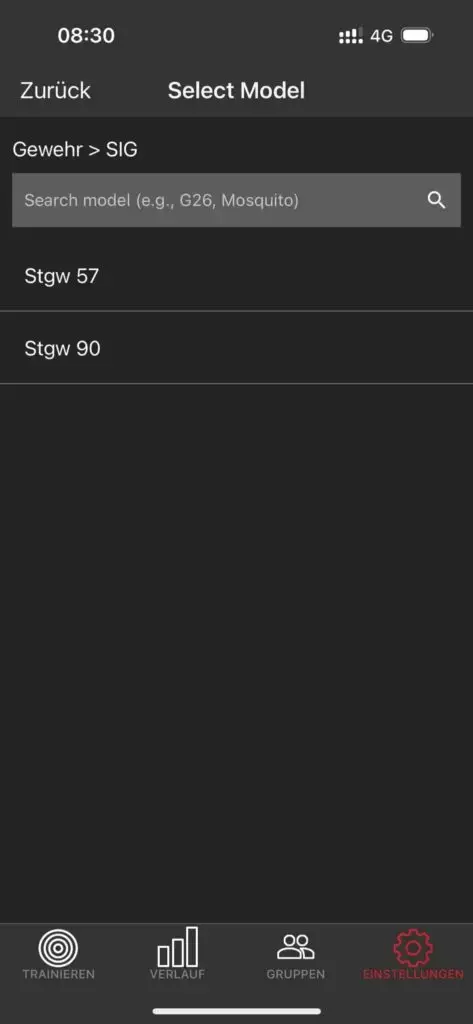
After selecting the manufacturer, the app displays the available models. Select the appropriate model, for example:
- Stgw 57
- Stgw 90
- GIS P210
If your model is not listed, you can add your own weapon at the end of the list, depending on the app version.
4. Select caliber
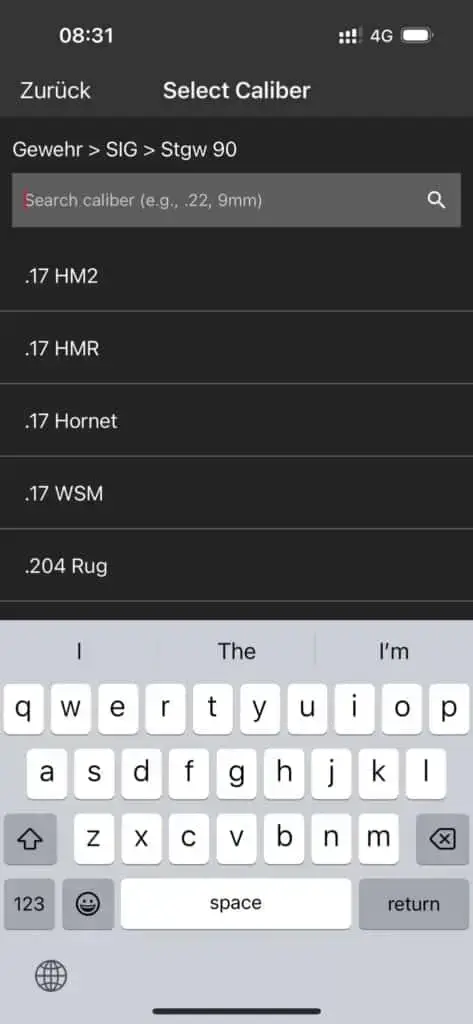
In the next step, select the appropriate caliber. If the required caliber is not listed, you can enter it using the search field or add it as a separate entry.
For example, this would be the case with the Stgw 90. 5,6 mm Gw Pat 90 respectively GP 90.
Make sure that the manufacturer, model, and caliber are clearly identified. This will make it easier to identify the correct weapon later during training.
5. Check settings
After equipping the weapon, it appears in the MantisX settings. Check before training:
- pistol or rifle
- used hand
- Shot detection mode
- Mounting direction of the sensor
- Mounting position on the weapon
The sensor settings must correspond to the actual installation. Incorrect settings can impair evaluation and shot detection.
What should I do if my weapon is not listed?
The MantisThe X database contains numerous manufacturers and models. Nevertheless, it is possible that a specific weapon or variant is not listed.
In this case, scroll to the end of the respective selection list. There, depending on the installed app version, you can add your own manufacturer, model, or caliber.
Use a clear name so that you can immediately recognize the weapon later in the arsenal and during training.
Use saved weapon in the course of events
After the workout, you can find the recorded sessions in the area CourseThere you can filter your results by the weapon used.
If you train with multiple pistols or rifles, you should check before each training session that the correct weapon is selected. This is the only way to reliably compare the results later.
Conclusion
A new weapon in the MantisSetting up the X App only takes a few minutes. Accurate recording of manufacturer, model, and caliber simplifies analysis and allows for a targeted comparison of your training results.
After selecting the desired mode, also check the shot detection mode as well as the mounting position and orientation of the sensor. This ensures that... MantisX is correctly set to your current training configuration.
We are an official outfitter